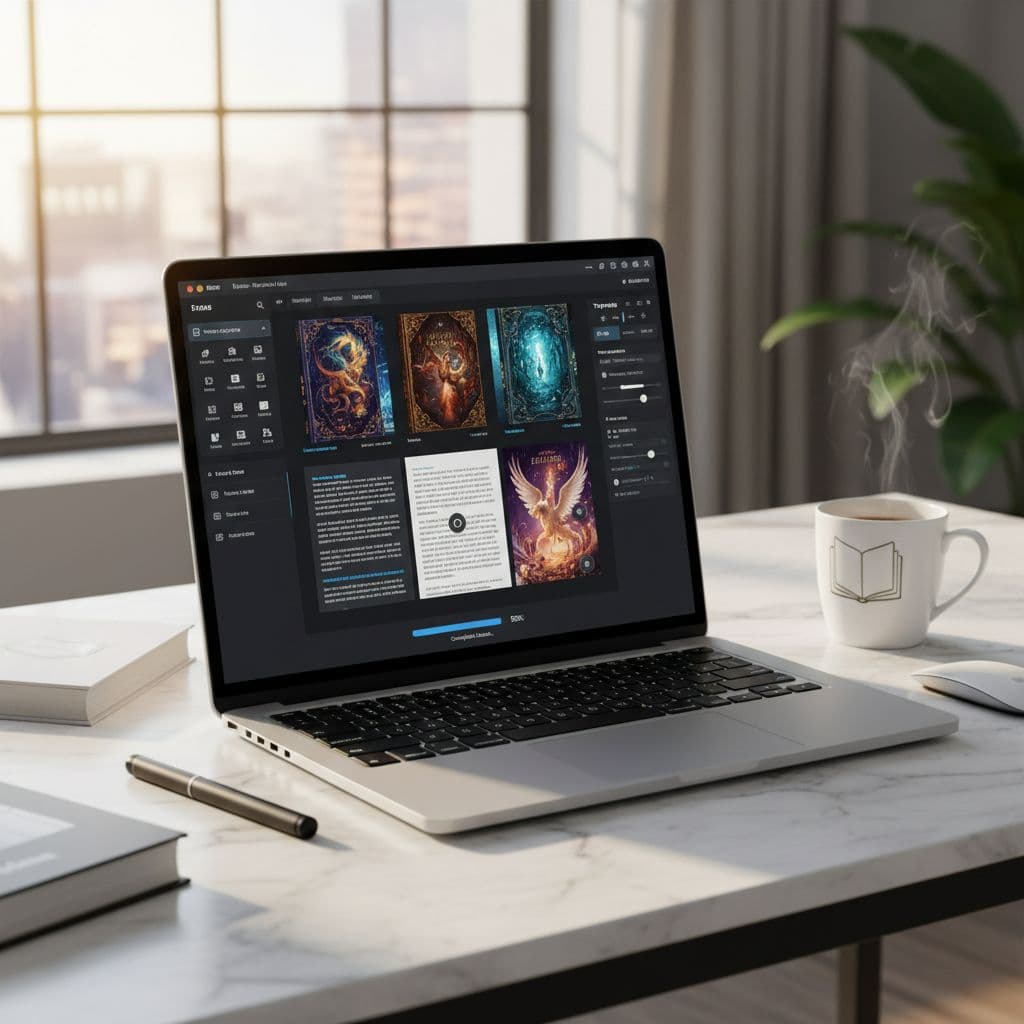

Top 10 Ebook Builders (2026): Best Tools for PDF, EPUB, and Print
Most people don’t need “the most advanced” ebook tool. They need the right fit for their content, budget, and skill level, so they can finish the book and hit publish without fighting the software.
An ebook builder is a tool that helps you write and format pages, design a clean layout, export to PDF or EPUB (and sometimes print-ready files), and in some cases publish or sell the final product. The best ones remove the fussy parts like spacing, image placement, fonts, and file settings, so your ebook looks polished on the first try.
In this post, you’ll get a clear list of 10 ebook builders worth using in 2026, plus a simple way to choose based on what you’re making. That includes lead magnets, course workbooks, self-published books, and internal training PDFs. Some tools are perfect for quick, branded PDFs, others are built for EPUB and Kindle, and a few cover both.
If you want a quick overview video before you compare tools, this is a helpful starting point: https://www.youtube.com/watch?v=0HULkPl_n_o
What to look for in an ebook builder before you commit
“Best” depends on what you’re making. A PDF lead magnet has different needs than a print book, and an EPUB for Kindle has its own rules. Before you pick from any top 10 list, get clear on your main output (PDF, EPUB, print, or all three) and how much control you want over layout.
Here’s a quick scan checklist you can keep open while you compare tools:
- Exports you need: PDF, EPUB, MOBI or Kindle-ready EPUB, and print-ready PDF (if printing)
- Layout type: fixed layout (good for design-heavy PDFs) vs reflowable (best for EPUB)
- Style controls: headings, spacing, font rules, page breaks, and a table of contents
- Image handling: size limits, compression controls, and support for high-res assets
- Collaboration: comments, assignments, and version history
- Selling tools (if needed): checkout, file delivery, coupons, email integrations, analytics
Formats that matter: PDF, EPUB, and print ready files
PDF is the “what you see is what you get” format. It’s fixed layout, which means your pages look the same on every screen. That’s perfect for workbooks, lead magnets, reports, and anything with precise spacing.
EPUB is different. Most EPUBs are reflowable, meaning the text “pours” into whatever screen it’s on. Font size, margins, and line spacing can change based on the reader’s device. That’s great for novels and long-form reading, but it can frustrate you if you expect pixel-perfect pages.
Print needs extra care because paper has rules. Look for settings that support margins, bleed (so backgrounds reach the edge after trimming), and high-resolution images (typically 300 DPI assets for photos and graphics). If a tool can’t produce a true print-ready PDF, you may end up fixing it later.
For Kindle, expect either a Kindle-ready EPUB or a workflow that plays nicely with Kindle upload tools. If your book has complex layouts (tables, callouts, lots of images), you might still need a professional formatter to avoid broken spacing and odd page breaks.
Design help vs full control: templates, drag and drop, and styles
Templates save time because you’re not building a layout from scratch. You pick a clean starting point, drop in your text, and adjust a few pieces. That’s ideal when you want a polished PDF fast.
Templates can feel tight when your ebook has unusual sections, mixed page types, or strict brand rules. This is where style controls matter. Strong tools let you set global rules for headings, body text, spacing, and lists, so your book stays consistent from page 1 to page 200.
Pay close attention to how the builder handles:
- Paragraph styles (H1, H2, body, captions)
- Spacing rules (before and after headings)
- Font pairing and line height
Quick tip: use one or two brand fonts and a small set of brand colors. Too many fonts or bright accents can make a professional ebook feel messy fast.
Collaboration, comments, and version history
If you work with an editor, designer, agency, or team, collaboration features stop small changes from turning into chaos. The basics are commenting, task notes, and real-time editing so you aren’t emailing files back and forth.
A good workflow feels like “track changes” without the pain: you can review edits, reply to comments, and keep moving without losing context. Version history is the safety net. It lets you restore an older draft if someone deletes a section, breaks formatting, or uploads the wrong file.
Without version history, people invent their own system like ebook-final-v7-really-final.pdf. That’s how mistakes slip into the version you publish. If multiple people will touch your ebook, prioritize tools that keep versions organized automatically.
Selling and lead capture: checkout, landing pages, and email tools
Some ebook builders do more than export files. They also help you sell the ebook or collect emails for a newsletter. If that’s your plan, check for a built-in checkout with Stripe and PayPal, plus automatic digital delivery (buyers get the download link right away).
For marketing, the most common needs are coupon codes, simple landing pages, and email integrations like Mailchimp or ConvertKit. Basic analytics help too, even simple numbers like views, conversions, and downloads.
If you only need a free lead magnet, you might skip checkout features. If the ebook is a paid product, these tools can save you extra software and setup time.
Top ebook builders worth trying right now
If you want a shortlist you can trust, start with tools that match how you’ll actually use your ebook. Some are made for branded PDF lead magnets, others are built for EPUB and print, and a few can handle all three without much fuss.
As you read, keep two things in mind: your main export format (PDF vs EPUB vs print-ready PDF), and how much layout control you want (templates vs pro typography). The “best” tool is usually the one that helps you finish the book without fighting formatting at the last minute.
Canva: fast, good looking ebooks and lead magnets
Best for: Beginners, marketers, and small teams making branded PDFs quickly.
What it does well: Canva is hard to beat for speed. You get a huge template library, drag-and-drop layout, and a Brand Kit to keep fonts, colors, and logos consistent. It’s also great for visual pages like checklists and workbooks, since charts, icons, and stock images are built in.
Export formats: PDF (standard and print-style options are common), plus other design exports. EPUB support can be limited depending on your workflow.
Learning curve: Low. Most people can produce a polished PDF in an afternoon.
Watch outs: Long documents can get slow, and typography controls are not as deep as pro tools. Reflowable ebook needs (like clean EPUB) often require extra steps.
Typical price range: Free plan available, paid tiers for Brand Kit, premium assets, and team features.
Best use cases: Lead magnets, short guides, workbooks, checklists, and mini course PDFs.
Adobe InDesign: pro layout for print and polished EPUB
Best for: Designers, publishers, and print-focused authors who need full control.
What it does well: InDesign is the workhorse for precise typography, grid-based layouts, and consistent page systems. Master pages, paragraph and character styles, and robust print settings help you build books that feel professionally typeset. It’s also a strong choice when you need both print-ready PDF and a carefully produced EPUB from the same source file.
Export formats: Print-ready PDF, interactive PDF options, and EPUB (including reflowable workflows).
Learning curve: High. Expect setup time, especially if you’re new to styles and preflight.
Watch outs: Subscription cost adds up, and it can feel heavy for simple ebooks. If you just want a quick lead magnet, it’s overkill.
Typical price range: Paid subscription (often bundled in Adobe plans).
When it shines: Coffee table books, textbooks, complex layouts, and professional print runs.
Atticus: simple writing plus ebook and print formatting
Best for: Authors who want one tool for drafting and formatting in the same place.
What it does well: Atticus keeps the process simple: write in chapters, apply consistent styles, preview your book, then export files that fit common self-publishing needs. It’s built for clean, readable pages rather than heavy design, so it tends to produce solid results without tons of tweaking.
Export formats: Common ebook and print outputs (typically EPUB and print-ready PDF options for self-publishing workflows).
Learning curve: Low to medium. If you’ve used Google Docs or Word, you’ll adjust quickly.
Watch outs: Design flourishes are limited compared to InDesign. Template variety can also feel narrow if you’re building brand-heavy marketing ebooks with lots of callouts and custom page types.
Typical price range: Paid tiers or one-time style pricing is common in this category, expect “starts around” pricing rather than a true free plan.
Ideal for: Novels, nonfiction books, and clean layouts that prioritize readability.
Scrivener: writing first, then compile to ebook formats
Best for: Long-form writing and research-heavy books where structure matters.
What it does well: Scrivener is like a binder for your book. You can outline, shuffle sections with a corkboard view, store notes and research, and keep drafts organized without juggling files. When the draft is done, you use Compile to turn your manuscript into publishable formats.
Export formats: Common manuscript and ebook-friendly exports via Compile (often including EPUB-like workflows, plus DOCX or PDF depending on settings).
Learning curve: Medium. Writing is easy, compiling clean output takes practice.
Watch outs: Scrivener isn’t a visual layout tool, so design choices are harder to “see” while you write. For fancy pages (full-bleed images, complex charts, brand layouts), you’ll likely move the final file into a dedicated formatter or layout app.
Typical price range: Paid license, often a one-time purchase model.
Best for: Drafting and organizing, not cover design or marketing-first page layouts.
Reedsy Book Editor: free, clean formatting with a guided flow
Best for: Authors who want a free, straightforward path to a good-looking book.
What it does well: The Reedsy Book Editor runs in your browser and guides you through writing and formatting with a clean, structured workflow. It’s strong for producing readable interiors without spending hours on spacing and styling. If your book is mostly text, it can get you to a publishable file faster than you’d think.
Export formats: Common publishing exports for ebooks and print workflows (typically EPUB and PDF options).
Learning curve: Low. The editor is simple and focused.
Watch outs: Custom design is limited, and you won’t get a big set of marketing templates for lead magnets. It’s not built for heavy visuals or lots of custom page types.
Typical price range: Free to use for the editor; other Reedsy services (like hiring pros) are paid.
Great for: Simple novels and nonfiction that doesn’t need a design-forward layout.
Vellum (Mac): smooth, high quality ebook and print outputs
Best for: Mac users who want beautiful formatting without a lot of manual work.
What it does well: Vellum has a reputation for producing clean, consistent ebook and print interiors with minimal effort. You choose style sets, format chapters, preview the output, and export files that are typically accepted across major self-publishing platforms. The preview experience is a highlight because it helps you spot issues early, before you upload.
Export formats: EPUB and print-ready PDF outputs are common for Vellum’s use case.
Learning curve: Low. Most users can format a straightforward book quickly.
Watch outs: Mac only, which is a deal-breaker for Windows users. Cost can feel high if you only publish once or twice. It’s also not trying to be InDesign, so extreme customization is not the point.
Typical price range: Paid license, often sold as separate tiers based on ebook vs print needs.
Popular for: Fiction and clean nonfiction.
Google Docs: the easiest place to draft and collaborate
Best for: Teams, editors, and early drafts where feedback matters.
What it does well: Google Docs is the easiest way to write with other people in the loop. Comments, suggestions, sharing permissions, and version history make it a safe place to build a manuscript. It also supports add-ons and simple formatting tools, which can help you stay consistent while drafting.
Export formats: DOCX and PDF exports are common, EPUB usually requires a second tool.
Learning curve: Very low. If you can use a browser, you can use Docs.
Watch outs: Exports often need cleanup, especially for headings, spacing, and image placement. Complex layouts do not translate well into EPUB without extra work.
Typical price range: Free for personal use, paid tiers for business features and storage.
Practical workflow: Draft in Google Docs, then move the DOCX into a dedicated formatter (Atticus, Vellum, InDesign, or similar) for final EPUB and print-ready output.
Microsoft Word: familiar drafting with surprising formatting power
Best for: Anyone who already lives in Word and wants wide compatibility.
What it does well: Word is better at book structure than people give it credit for. If you use Styles properly, you can generate a reliable table of contents, keep headings consistent, and hand off a clean file to an editor, formatter, or designer. It’s also a common starting point because so many tools import DOCX well.
Export formats: PDF is straightforward, EPUB export exists in some workflows but can be tricky to make retailer-clean. DOCX remains the main “handoff” format.
Learning curve: Low to medium, depending on how comfortable you are with Styles and section breaks.
Watch outs: Layout can shift between devices and versions of Word. EPUB output can be fussy, especially with images, tables, and spacing hacks.
Typical price range: Paid subscription or one-time license options, depending on plan.
Tips to make Word work: Use Styles (not manual font changes), avoid extra blank lines for spacing, and anchor images carefully so they don’t jump around.
Apple Pages (Mac and iOS): easy layout with solid templates
Best for: Mac and iPad users who want simple layout control with a polished look.
What it does well: Pages sits in a sweet spot between a word processor and a light design tool. Templates give you a clean starting point, and drag-and-drop layout makes it easy to add photos, callouts, and workbook-style pages without learning pro design software.
Export formats: PDF and EPUB are typical exports, and it can also share to Word formats for collaboration.
Learning curve: Low. It’s friendly, especially if you’ve used other Apple apps.
Watch outs: Collaboration with non-Apple users can be awkward, since formatting can change when moving between Pages and Word. For complex EPUB workflows, you may need extra validation or a second pass in a dedicated epub tool.
Typical price range: Free on many Apple devices (or free download), with no required subscription.
Good for: Short ebooks, reports, and workbooks that need a clean, modern layout.
Designrr: turn existing content into an ebook quickly
Best for: Marketers who want to repurpose content into a lead magnet fast.
What it does well: Designrr is built for speed when you already have source material. You can import blog posts and other content types, apply templates, and generate a decent-looking PDF without starting from a blank page. If your goal is to ship a bonus guide this week, it’s a practical option.
Export formats: PDF is the main focus, with other outputs depending on your plan and workflow.
Learning curve: Low. Import, tidy, format, export.
Watch outs: Imported content often needs cleanup (headings, spacing, image placement, odd characters). Design flexibility can depend on the plan you’re on, and you may hit limits if you want a heavily custom brand layout.
Typical price range: Paid tiers, sometimes with a trial or limited plan options.
Best case: Lead magnets where speed matters more than perfect custom typography, like turning a blog series into a downloadable PDF.
How to choose the right tool for your goal, budget, and skill level
Choosing an ebook builder is a lot like choosing a kitchen. If you’re making toast, you don’t need a restaurant setup. If you’re plating a full meal for paying customers, the basics won’t cut it.
A simple way to decide is to pick your path first, then match the tool.
- Start small (beginner path): Use a template-driven builder for a polished PDF in a day (great for lead magnets and short guides).
- Go pro (print-focused author path): Use a formatter built for clean EPUB and print interiors, and treat exports like final deliverables, not afterthoughts.
Once you know which track you’re on, the “best” tool becomes obvious.
If you are making a lead magnet, keep it simple and on brand
A lead magnet has one job: earn trust and get the next click. That means you want a tool that’s template-driven, easy to brand, and quick to export as a clean PDF. Tools like Canva, Designrr, and Apple Pages are popular here because they help you build good-looking pages without wrestling layout rules.
Focus on three details that make a lead magnet feel professional:
- Clickable links: Make your website, booking link, and social handles tappable. Also link the table of contents if your PDF is more than a few pages.
- A clear call to action: Don’t hide it in the last paragraph. Put one primary CTA near the top and repeat it near the end (example: “Book a call,” “Download the full checklist,” or “Reply with your biggest question”).
- Light file size: Compress images and avoid full-page photos unless you need them. A smaller PDF loads faster on phones and is easier to email.
Accessibility is worth the extra two minutes. Use a readable font size (often 11 to 12 pt for body text), keep strong contrast (dark text on a light background is safest), and add alt text when the tool supports it. If alt text isn’t available, keep important info out of images so it isn’t lost.
If you are self publishing, prioritize clean EPUB and print files
Self-publishing tools should protect you from messy formatting. The biggest difference between a “fine” ebook and a professional one is consistency. When headings, spacing, and chapter breaks follow clear rules, your EPUB behaves on different screens, and your print file doesn’t surprise you at the last minute.
Look for tools that make these non-negotiables easy (Atticus, Vellum, Reedsy Book Editor, and InDesign, depending on your skill level):
- Styles that stay put: Heading 1 means the same thing everywhere, not “whatever looks right today.”
- Clean chapter breaks: Each chapter should start cleanly, with predictable spacing and no random blank pages.
- A real table of contents: Built from headings, not typed by hand.
Don’t skip the basics of front matter and back matter. Front matter often includes a title page, copyright page, and optional dedication. Back matter is where you add an about the author section, acknowledgments, and a link to your email list or next book.
Before you launch, test your EPUB on multiple devices (phone, tablet, Kindle app). For print, order a proof. A proof catches margin issues, odd page breaks, and image problems that previews can miss.
If you are working with a team, choose the tool that prevents chaos
Team projects don’t fail because people can’t write. They fail because no one knows which file is real. If more than one person will touch the ebook, pick a tool that supports comments, roles, and version history (Google Docs for drafting, then a dedicated builder for final formatting is a common setup).
Keep the workflow simple so it holds up under pressure:
- One source of truth: One main file for the manuscript and one place for design assets.
- Named versions: Use clear milestones like
Draft-For-Edit,Post-Edit,Layout-V1,Final-Export. - A final export owner: One person is responsible for generating the final PDF and EPUB, so outputs don’t drift.
Plan the handoff early. Editors usually want a clean DOCX or shared doc with styles used correctly. Designers want brand fonts, color codes, and image files (not screenshots). When the tool fits the workflow, you spend less time chasing files and more time shipping the book.
Common mistakes that make ebooks look unprofessional (and how to avoid them)
Most “unprofessional” ebooks don’t fail because of the writing. They fail because the formatting looks like it was held together with tape. The good news is these problems are usually quick to fix if you treat your ebook like a system, not a pile of pages. Set a few rules early, then let your ebook builder apply them everywhere.
Inconsistent fonts, spacing, and headings
The fastest way to make an ebook look homemade is mixing fonts, random spacing, and headings that change from chapter to chapter. This usually happens when you format by hand, selecting text and tweaking size, bold, and line breaks as you go.
Do this instead: use styles, not manual formatting. Styles let you define what “Body,” “Heading 1,” and “Heading 2” mean once, then apply them with a click. When you update a style, the whole ebook updates with it. This matters for EPUB, too, because clean styles translate better than visual hacks.
A simple rule of thumb that works for most ebooks:
- One font family, so the pages feel consistent.
- Two weights (regular and bold), so emphasis stays clean.
- Consistent heading sizes, so readers always know what level they’re on.
Spacing is the other big one. Avoid hitting Enter three times to “make it look right.” Set spacing before and after headings in your style settings, then keep body text line spacing consistent across the whole file. If you want a quick self-check, scroll through 10 pages fast. If the rhythm of the page keeps changing, your styles need attention.
Blurry images and giant file sizes
Blurry images make your ebook look cheap, and huge files frustrate readers (slow downloads, email delivery issues, lag on phones). You can prevent both with a few basic choices.
For screen-first ebooks (most lead magnets and EPUBs), use images that look sharp on a phone or tablet, then compress so the file stays light. For print PDFs, you’ll need higher-quality images, because printing exposes softness fast.
Keep it simple:
- Use JPG for photos (smaller file size).
- Use PNG for logos, icons, and simple graphics (clean edges).
- Check your export settings, because some tools export “print” quality by default even when you only need screen quality.
Quick habit: after exporting, open the PDF and zoom in to 200%. If a photo looks fuzzy there, it will look worse in print. If the file size feels huge for a short ebook, re-export with image compression turned on.
Broken links, missing pages, and a messy table of contents
Nothing breaks trust like a table of contents that doesn’t work or a “click here” link that goes nowhere. These are last-mile issues, so they slip through when you’re tired and ready to publish.
Do this instead: run a final pass that’s more mechanical than emotional:
- Click every link (TOC links, footer links, CTA buttons, social links).
- For print or fixed-layout PDFs, confirm page numbers match your table of contents.
- For EPUB, test the TOC in at least two readers (Kindle app and Apple Books are a solid combo).
One more tip: don’t add page numbers just because you can. Page numbers only make sense for print or fixed-layout PDFs. In reflowable EPUB, page numbers don’t behave the way readers expect, so they often create confusion instead of clarity.
Conclusion
The top 10 ebook builders on this list cover three real needs, fast branded PDFs, clean EPUBs for e-readers, and print-ready files that hold up on paper. The best ebook builder isn’t the one with the most features, it’s the one that matches your format and your workflow, so you can finish and publish without format stress.
Pick one tool from the list today and commit to a simple system, either a solid template (great for lead magnets) or a style-based layout (best for EPUB and print). Consistent styles, clean headings, and predictable spacing do more for quality than fancy design tricks.
Use this quick test plan: write 2 pages, format 1 chapter, export a PDF or EPUB, then review it on your phone and your laptop. Fix what feels off (headings, images, links), then export again. Two quick passes beat hours of tweaking later.
Thanks for reading. Bookmark this list and come back when your needs change, because the right tool today might not be the right one for your next book.